Fitting instructions
Device concept
The LocalNet active distributor is required if there are not enough LocalNet connection sockets on the welding machine or wirefeeder.
Three LocalNet connection sockets on the rear of the welding machine create the best conditions for the simultaneous operation of numerous system add-ons, e.g. ROB 3000, 4000, 5000, remote control units, etc.
Using temporarily connected LocalNet nodes, such as the RCU 4000 remote control unit, offers a significant advantage over the LocalNet passive distributor. Compared to the LocalNet passive distributor, individual connection sockets can remain unused on the LocalNet active distributor when the extra stations are no longer required.
NOTE!
If using the LocalNet active distributor, always connect external wire drives to the metal LocalNet connection socket.
Device concept
The LocalNet active distributor is required if there are not enough LocalNet connection sockets on the welding machine or wirefeeder.
Three LocalNet connection sockets on the rear of the welding machine create the best conditions for the simultaneous operation of numerous system add-ons, e.g. ROB 3000, 4000, 5000, remote control units, etc.
Using temporarily connected LocalNet nodes, such as the RCU 4000 remote control unit, offers a significant advantage over the LocalNet passive distributor. Compared to the LocalNet passive distributor, individual connection sockets can remain unused on the LocalNet active distributor when the extra stations are no longer required.
NOTE!
If using the LocalNet active distributor, always connect external wire drives to the metal LocalNet connection socket.
System requirements
The welding machine supports the LocalNet active distributor, serial number 12022413 or higher.
Safety
WARNING!
Danger from incorrect operation and work that is not carried out properly.
This can result in serious personal injury and damage to property.
All the work and functions described in this document must only be carried out by technically trained and qualified personnel.
Read and understand this document in full.
Read and understand all safety rules and user documentation for this device and all system components.
WARNING!
Danger from electrical current.
This can result in serious personal injury and damage to property.
Before starting work, switch off all devices and components involved and disconnect them from the grid.
Secure all devices and components involved so they cannot be switched back on.
After opening the device, use a suitable measuring instrument to check that electrically charged components (such as capacitors) have been discharged.
CAUTION!
Danger of damage to electrical components from electrical discharge.
This can result in damage to property.
Suitable measures should be taken to protect against ESD when replacing and installing components.
Components
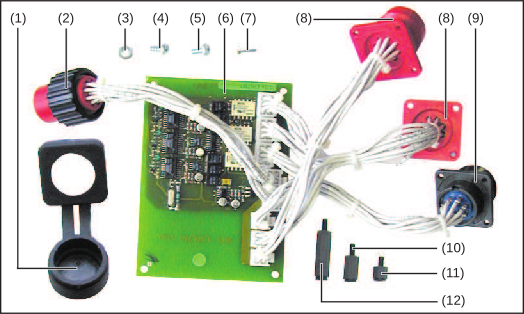
LocalNet active distributor installation set (4,100,298)
| (1) | 2 x rubber cover |
| (2) | 1 x cable harness with amphenol plug |
| (3) | 1 x hexagon nut |
| (4) | 4 x countersunk screw 4 x 8 mm |
| (5) | 4 x fillister head screw 4 x 8 mm |
| (6) | 1 x SNT3 PCB |
| (7) | 2 x self-tapping screw 3.5 x 9.5 mm |
| (8) | 2 x plastic connection socket with cable harness |
| (9) | 2 x metal connection socket with cable harness |
| (10) | 4 x M4 spacer x 15 mm |
| (11) | 1 x M4 spacer x 10 mm |
| (12) | 3 x M4 spacer x 30 mm |
Installing LocalNet active distributor in welding machine
Preparations
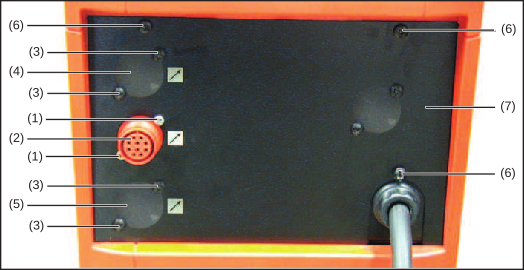
Removing LocalNet connection socket and metal plate
1Loosen 2 screws 4 x 8 mm (1) on the back of the welding machine and remove existing LocalNet connection socket (2)
2If present, undo 4 screws (3), remove blanking covers (4) and (5)
NOTE! If the LocalNet extension installation set is being installed, do not remove the upper blanking cover (4) from the metal plate.
NOTE! If the LocalNet extension installation set is being installed, do not remove the upper blanking cover (4) from the metal plate.
3Undo 3 screws (6) on the rear of the welding machine and remove metal plate (7)
NOTE! When removing the metal plate, do not pinch, bend or strain the cables.
NOTE! When removing the metal plate, do not pinch, bend or strain the cables.
4Carefully remove the metal plate
NOTE! If there are no thread bolts on the inside of the metal plate, order a metal plate with thread bolts (32,0409,2657).
NOTE! If there are no thread bolts on the inside of the metal plate, order a metal plate with thread bolts (32,0409,2657).
Preparations
Removing LocalNet connection socket and metal plate
1Loosen 2 screws 4 x 8 mm (1) on the back of the welding machine and remove existing LocalNet connection socket (2)
2If present, undo 4 screws (3), remove blanking covers (4) and (5)
NOTE! If the LocalNet extension installation set is being installed, do not remove the upper blanking cover (4) from the metal plate.
NOTE! If the LocalNet extension installation set is being installed, do not remove the upper blanking cover (4) from the metal plate.
3Undo 3 screws (6) on the rear of the welding machine and remove metal plate (7)
NOTE! When removing the metal plate, do not pinch, bend or strain the cables.
NOTE! When removing the metal plate, do not pinch, bend or strain the cables.
4Carefully remove the metal plate
NOTE! If there are no thread bolts on the inside of the metal plate, order a metal plate with thread bolts (32,0409,2657).
NOTE! If there are no thread bolts on the inside of the metal plate, order a metal plate with thread bolts (32,0409,2657).
Installing „Local- (2) Net active“ distributor installation set in welding machine
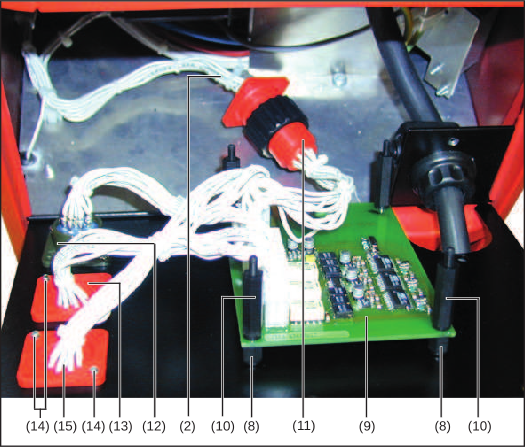
Print SNT3 und Anschlussbuchsen LocalNet montieren
1Screw the M4 spacers x 15 mm (8) to the threaded bolts on the metal sheet
2Place SNT3 PCB (9) onto M4 x 15 mm spacers (8)
3Fasten SNT3 PCB (9) using 3 M4 x 30 mm spacers (10) and 1 M4 x 10 mm spacer
4Connect existing LocalNet connection socket (2) to the cable harness with amphenol plug (11)
5Insert metal connection socket (12) into the lowermost bushing in the metal plate and fasten using 2 self-tapping screws (3.5 x 9.5 mm)
6Insert plastic connection socket (13) into the middle bushing in the metal plate and fasten using two 4 x 8 fillister head screws (14)
7Insert the second plastic connection socket (15) into the uppermost bushing in the metal plate and fasten using 4 x 8 fillister head screws (14)
Finally...
NOTE! When putting the metal plate in place, do not pinch, bend or strain the cables
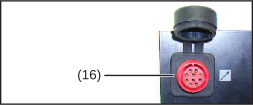
Fitting rubber covers
1On the rear of the welding machine, locate the metal plate carefully and secure in place
2Fit rubber covers (16) on the plastic connection sockets
Installing LocalNet active distributor in field bus coupler
Preparations
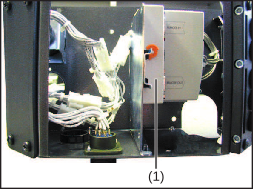
Remove field bus coupler from the DIN rail
1Remove cover
2Remove field bus coupler (1) from the DIN rail
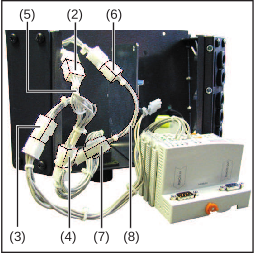
Remove connecting cable harness
3Unplug 6-pin Molex plugs (2), (3) and (4), remove connecting cable harness (5)
4Unplug 4-pin Molex plugs (6) and (7), remove connecting cable harness (8)
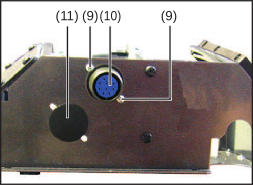
Removing the LocalNet connection socket
5Undo screws (9), remove existing LocalNet connection socket (10)
6Remove blanking cover (11)
Preparations
Remove field bus coupler from the DIN rail
1Remove cover
2Remove field bus coupler (1) from the DIN rail
Remove connecting cable harness
3Unplug 6-pin Molex plugs (2), (3) and (4), remove connecting cable harness (5)
4Unplug 4-pin Molex plugs (6) and (7), remove connecting cable harness (8)
Removing the LocalNet connection socket
5Undo screws (9), remove existing LocalNet connection socket (10)
6Remove blanking cover (11)
Installing LocalNet active distributor in field bus coupler
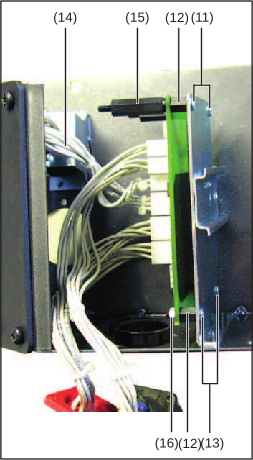
Fitting the SNT3 PCB
1Unplug plastic connection socket from SNT3 PCB:
- Unplug 4-pin Molex plug on output C: X11.3
- Unplug 6-pin Molex plug on output C: X6.3
2Fasten M4 x 15 mm spacers (12) using 4 x 8 mm fillister head screws (13)
3Place SNT3 PCB onto M4 x 15 mm spacers (12)
4Plug cable harness (14) from LocalNet input into SNT3 PCB:
- Plug 4-pin Molex plug of cable harness (14) into X10
- Plug 6-pin Molex plug of cable harness (14) into X7
5Plug 6-pin Molex plug from field bus coupler cable harness into output C: X6.3, (not illustrated)
6Fasten SNT3 PCB using three M4 x 30 mm spacers (15) and hexagon nut (16)
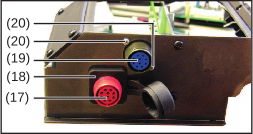
Fitting the LocalNet connection sockets
7Insert plastic connection socket (17) and fasten using two 4 x 8 mm fillister head screws
8Fit rubber cover (18) on the plastic LocalNet connection socket (17)
9Insert metal connection socket (19) and fasten using two 3.5 x 9.5 mm self-tapping screws (20)
Finally...
1Place field bus coupler onto the DIN rail
2Fit cover
Installing LocalNet extension in welding machine
General remarks
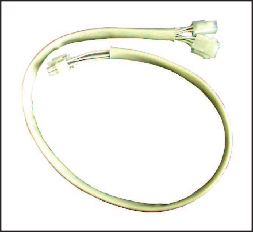
LocalNet extension installation set (4,100,309)
The LocalNet extension installation set is available as an option for the TS 4000/5000 and TPS 3200/4000/5000 remote welding machines.
The LocalNet extension installation set can be used to install one of the LocalNet connection sockets in the front of the welding machine.
General remarks
LocalNet extension installation set (4,100,309)
The LocalNet extension installation set is available as an option for the TS 4000/5000 and TPS 3200/4000/5000 remote welding machines.
The LocalNet extension installation set can be used to install one of the LocalNet connection sockets in the front of the welding machine.
Preparations
1With the exception of step 7 (Insert second plastic connection socket into the uppermost bushing in the metal plate):
Install LocalNet distributor in welding machine (see section headed „Installing LocalNet active distributor in welding machine“)
Install LocalNet distributor in welding machine (see section headed „Installing LocalNet active distributor in welding machine“)
2Unplug plastic connection socket from SNT3 PCB:
- Unplug 4-pin Molex plug on output C: X11.3
- Unplug 6-pin Molex plug on output C: X6.3
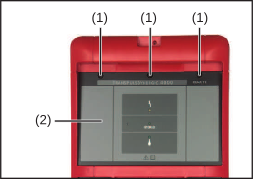
Removing „Remote“ control panel
3Remove the left side panel of the welding machine
4Loosen 3 screws (1)
NOTE! When removing the „Remote“ control panel, do not pinch, bend or strain the cables.
5Carefully remove the „Remote“ control panel (2)
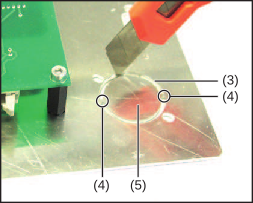
Cutting open the protective film
6Cut open the protective film covering the bushing (3)
7Cut through the tabs (4) of the disk (5) on the bushing (3): Move disk (5) back and forth several (3) times
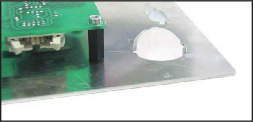
„Remote“ control panel with disk removed
8Remove disk (5)
Installing LocalNet extension in welding machine
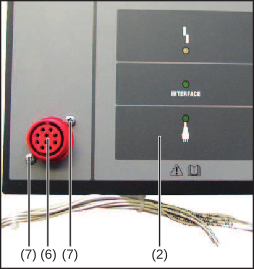
Fitting plastic connection socket to the „Remote“ control panel
1Insert plastic connection socket (from SNT3 PCB) (6) into the hole on the „Remote“ control panel (2) and fasten using two fillister head screws
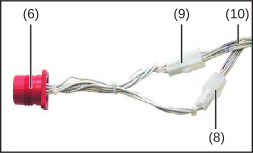
Plugging connection socket into LocalNet extension
2Plug 4-pin Molex plug (8) and 6-pin Molex plug (9) from the plastic connection socket (6) into the LocalNet extension (10)
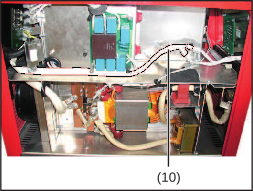
Routing extension cable harness
3Route LocalNet extension (10)
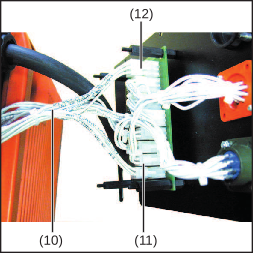
Plugging LocalNet extension into SNT3 PCB
4Connect LocalNet extension (10) to the SNT3 PCB:
- 4-pin Molex plug (11) on output C: X11.3
- 6-pin Molex plug (12) on output C: X6.3
Finally...
NOTE! When putting the control panel, metal plate and side panel in place, do not pinch, bend or strain the cables.
1Carefully put „Remote“ control panel in place and fasten
2On the rear of the welding machine, locate the metal plate carefully and secure in place
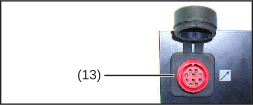
Fitting rubber covers
3Place rubber covers (13) on the plastic connection sockets
4Fit side panel