

- Operating InstructionsRC Panel Basic / Basic BT / Basic TMC / Standard / Standard TIG
- General
- Control elements on the RC Panel Basic, RC Panel Basic /BT, RC Panel Basic TIG /TMC
- Controls and indicators on the RC Panel Standard
- Controls and indicators on the RC Panel Standard TIG
- Installation and commissioning
- Fitting optional extras
- RC Panel Basic /BT: changing the battery
015-22092025
General
Safety
WARNING!
Danger due to incorrect operation and work not carried out correctly.
This may result in serious personal injury and damage to property.
All the work and functions described in this document must be carried out by technically trained and qualified personnel only.
Read and understand this document in full.
Read and understand all safety rules and user documentation for this equipment and all system components.
WARNING!
Danger due to welding processes starting unintentionally. Once the remote control has been connected, the welding process can be started using the welding torch or the remote control.
Could result in serious personal injury and damage to property.
Ensure that the welding process is only started intentionally.
WARNING!
Danger from welding operation (blinding hazard, flying sparks, harmful welding fume, noise, etc.)
Personal injury may result.
Keep unauthorized people away during the operation of the devices and during the welding process.
Inform people in the vicinity about all the dangers of the welding operation.
Provide suitable protective equipment.
Construct suitable protective walls and curtains.
CAUTION!
Danger due to emerging wire electrode.
Personal injury may result.
Hold the welding torch so that the tip of the welding torch points away from the face and body.
Wear suitable protective goggles.
Do not point the welding torch at people.
Ensure that the wire electrode can only intentionally make contact with electrically conductive objects.
WARNING!
Danger due to incorrect operation and work not carried out correctly.
This may result in serious personal injury and damage to property.
All the work and functions described in this document must be carried out by technically trained and qualified personnel only.
Read and understand this document in full.
Read and understand all safety rules and user documentation for this equipment and all system components.
WARNING!
Danger due to welding processes starting unintentionally. Once the remote control has been connected, the welding process can be started using the welding torch or the remote control.
Could result in serious personal injury and damage to property.
Ensure that the welding process is only started intentionally.
WARNING!
Danger from welding operation (blinding hazard, flying sparks, harmful welding fume, noise, etc.)
Personal injury may result.
Keep unauthorized people away during the operation of the devices and during the welding process.
Inform people in the vicinity about all the dangers of the welding operation.
Provide suitable protective equipment.
Construct suitable protective walls and curtains.
CAUTION!
Danger due to emerging wire electrode.
Personal injury may result.
Hold the welding torch so that the tip of the welding torch points away from the face and body.
Wear suitable protective goggles.
Do not point the welding torch at people.
Ensure that the wire electrode can only intentionally make contact with electrically conductive objects.
Device concept
The remote control can be used with the following system components:
RC Panel Basic with SpeedNet connection socket
- System components from the TPS/i series
RC Panel Basic /BT
- System components from the TPS/i series
- System components from the TT/MW series (with Bluetooth function)
- Only in certified countries
RC Panel Basic TIG/TMC with TMC connection socket
- System components from the TT/MW series (with TMC connection socket)
- System components from the TP series (with TMC connection socket)
When using the remote control, the parameters are set and functions selected depending on the welding process and welding machine.
NOTE!
As a result of firmware updates, you may find that your device has certain functions that are not described in these operating instructions, or vice versa.
Certain illustrations may also differ slightly from the actual controls on your device, but these controls function in exactly the same way.
Scope of supply
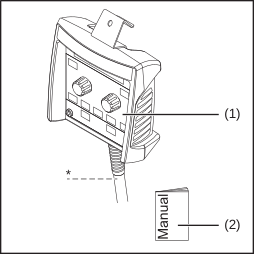
(1) | Remote control |
(2) | This document |
|
|
* | Cable not provided with RC Panel Basic / BT |
Options
Available option | Item number |
|---|---|
TMC extension 5 m | 43,0004,5979 |
RC Panel Basic, RC Panel Basic TIG / TMC, RC Panel Standard, RC Panel Standard TIG technical data
Supply voltage | + 24 V DC |
Protection class | IP 44 |
Mark of conformity | CE, CSA |
Dimensions (l x w x h) | 160 x 150 x 70 mm |
Ambient air temperature range: | -10 bis +40 °C |
RC Panel Basic /BT technical data
Supply voltage | 3 V DC |
Bluetooth version | BLE 4.0 (Bluetooth Low Energy) |
Bluetooth range | Up to 10 m |
Frequency range | 2402 - 2480 MHz |
Transmission power | 8.32 dBm EIRP |
Channels | 40 (0 -39) |
Modulation | GFSK |
Battery life | 7600 h |
Listing | BT SIG No. D041023 |
Protection class | IP 23 |
Mark of conformity | CE, FCC, IC |
Ambient air temperature range: | -10 - + 40 °C |
Dimensions (l x w x h) | 160 x 150 x 70 mm |
Weight (without packaging) | 0.64 kg |
Bluetooth trademarks
The Bluetooth® word mark and logos are registered trademarks owned by Bluetooth SIG, Inc. and any use of such marks by Fronius International GmbH is under license. Other trademarks and trade names are those of their respective owners.
Information on radio certification
The RC Panel Basic /BT remote control is fitted with a wireless module.
In the USA, wireless modules are subject to FCC certification:
FCC
This wireless module is subject to Part 15 of the FCC Code of Federal Regulations. Its use is subject to the following conditions:
(1) This device must not cause any interferences and
(2) The device must be able to cope with any interference, including that which could adversely affect the operation of the module.
FCC ID: QOQBLE121LR
Industry Canada RSS
This device complies with the Industry Canada licence-exempt RSS standards. Its use is subject to the following conditions:
(1) This device must not cause any interferences and
(2) The device must be able to cope with any interference, including that which could adversely affect the operation of the module.
IC: 5123A-BGTBLE121LR
Unless expressly stated by the manufacturer, changes or modifications to the wireless module are not permitted and will invalidate the user's operating license for the device.
NOTE!
This equipment has been tested and found to comply with the limits for a Class A digital device, pursuant to Part 15 of the FCC Rules.
These limit values are intended to provide an adequate level of protection against harmful emissions when the device is used in an industrial environment. This device generates and uses high-frequency energy and may also radiate this energy. If the device is not installed and used according to the Operating Instructions, this could potentially lead to dangerous interference of the wireless communication system. Operation of this equipment in a residential area is likely to cause harmful interference, in which case users will be required to correct the interference at their own expense.
Control elements on the RC Panel Basic, RC Panel Basic /BT, RC Panel Basic TIG /TMC
General
NOTE!
The operating instructions of the welding machine contain additional information on the welding parameters.
General
NOTE!
The operating instructions of the welding machine contain additional information on the welding parameters.
Adjuster functions during MIG/MAG welding
The adjuster performs different functions depending on the welding process. | ||||
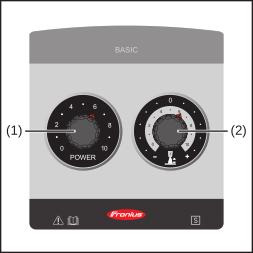 |
| (1) |
| |
(2) |
| |||
Adjuster functions during electrode welding
|
| (1) | Setting the welding current | |
(2) | Influencing the arc-force dynamic:
| |||
Adjuster functions during TIG welding
|
| (1) | Setting the welding current | |
(2) | inactive | |||
RC Panel Basic /BT further control elements

| (1) | Sticker with QR code and MAC address |
| (2) | Indicator light a) For switching the remote control on/off b) As a status indicator |
- Lights up after switching on for 3 seconds.
- Flashes four times if the remote control is connecting to a receiver.
The flashing stops if the connection process is interrupted. - Does not light up if the battery is weak or flat.
The battery compartment for the two AA batteries is located inside the device.
Batteries are included in the scope of supply for the remote control.
Controls and indicators on the RC Panel Standard
General
NOTE!
The operating instructions of the welding machine contain additional information on the welding parameters.
General
NOTE!
The operating instructions of the welding machine contain additional information on the welding parameters.
Controls and indicators on the RC Panel Standard
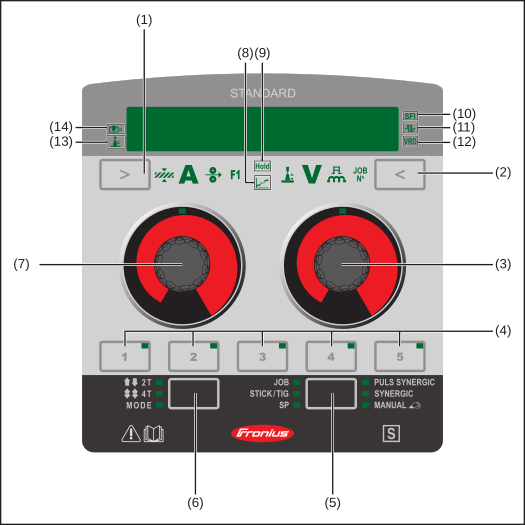
Number | Control | Indicator | Function |
|---|---|---|---|
(1) |  |
| Parameter selection button (left) |
|
|
| |
|  | Material thickness *) | |
|
|
| |
|  | Current *) | |
|
|
| |
|  | Wire speed *) | |
|
|
| |
|  | Special function
As soon as F1 is selected, the current adjustable process control parameter is marked with an arrow on the display. Press the "Parameter selection" button (left) (1) again to select the second process control parameter. The following special functions can be selected depending on the configuration. | |
| *) = Synergic parameter. | ||
(2) |  |
| Parameter selection button (right) |
|
|
| |
|  | Arc length correction | |
|
|
| |
|  | Voltage *) | |
|
|
| |
|  | Pulse/dynamic correction | |
|
|
| |
|  | Job number for selecting a job number | |
|
|
| |
| *) = Synergic parameter. | ||
(3) |  |
| Adjusting dial with turn/press function
|
(4) |  |
| EasyJob button
|
(5) |  |
| Welding process button
|
(6) | |
| Mode button |
|  | 2-step mode | |
|  | 4-step mode | |
|  | Depending on the function package, various special operating modes can be selected. Press the button to see the available operating modes shown on the display one after the other | |
(7) | |
| Adjusting dial with turn/press function
|
Number | Indicator | Function |
|---|---|---|
(8) |  | Intermediate arc indicator |
(9) |  | Hold indicator |
(10) |  | SFI (spatter-free ignition) indicator |
(11) |  | SynchroPulse indicator |
(12) |  | VRD (voltage reduction device) indicator |
(13) |  | Penetration stabilizer indicator |
(14) |  | Arc length stabilizer indicator |
Controls and indicators on the RC Panel Standard TIG
General
NOTE!
The operating instructions of the welding machine contain additional information on the welding parameters.
NOTE!
As a result of firmware updates, you may find that there are functions available on your device that are not described in these operating instructions or vice versa.
Certain illustrations may also differ slightly from the actual controls on your device, but these controls function in exactly the same way.
General
NOTE!
The operating instructions of the welding machine contain additional information on the welding parameters.
NOTE!
As a result of firmware updates, you may find that there are functions available on your device that are not described in these operating instructions or vice versa.
Certain illustrations may also differ slightly from the actual controls on your device, but these controls function in exactly the same way.
Input options

| (1) | Left adjusting dial with turn/press function To select elements, set values and scroll through lists |
| (2) | Right adjusting dial with turn/press function To select elements, set values and scroll through lists |
Turn the adjusting dial
 |
|
Press the adjusting dial
 |
|
Controls and indicators on the RC Panel Standard TIG
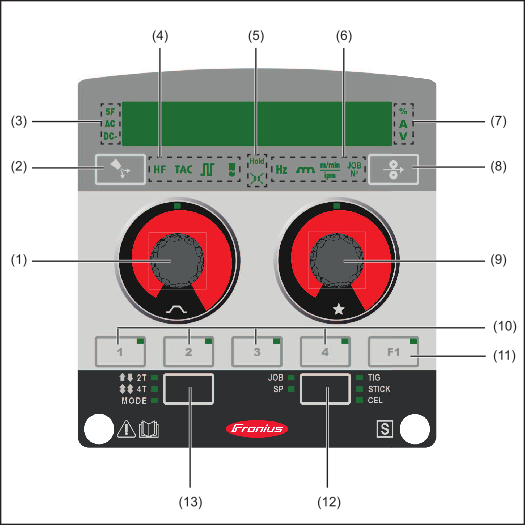
| (1) | Left adjusting dial with turn/press function To select, change and set parameters Turn the adjusting dial: Change values, select parameters Press the adjusting dial: Confirm a selection in a menu, apply values Adjustable parameters:
|
| (2) | Gas-test button For setting the required gas flow rate on the gas pressure regulator/for filling the torch hosepack with shielding gas. When the "Gas-test" button is pressed, shielding gas will flow for 30 seconds. Press the button again to stop the gas flow prematurely. |
| (3) | SF indicator Special function AC indicator Status indicator for selected AC polarity DC- indicator Status indicator for selected DC- polarity |
| (4) | HF ignition indicator The HF ignition indicator lights up on the display if the HF ignition setup parameter has been set to "On". TAC (tacking) indicator The tacking (TAC) indicator lights up on the display if the "Tacking" parameter has been set to a period of time. Pulse indicator The pulse indicator lights up on the display if the "Pulse frequency" parameter has been set to a pulse frequency. Cap mode indicator Lights up if cap mode is active. |
| (5) | Hold indicator At the end of each welding operation, the actual values for welding current and welding voltage are stored – the "HOLD" indicator lights up. Torch trigger deactivated indicator The display shows the symbol for the deactivated torch trigger in the status bar; the selection of the operating mode is deactivated. |
| (6) | Hz indicator Displays the set frequency Arc-force dynamic indicator To influence the short-circuiting dynamic at the moment of droplet transfer - ... harder and more stable arc 0 ... neutral arc + ... soft and low-spatter arc Wire speed indicator in m/min or ipm Displays the selected wire speed EasyJob number indicator Displays the selected EasyJob |
| (7) | Hold indicator Depending on the setting, the welding data is saved each time welding ends; "Hold" appears on the display. A indicator Current in A Before the start of welding, a set value is automatically displayed. The actual value is displayed during welding. V indicator Voltage in V The actual value is displayed during welding. |
| (8) | Wire threading button To thread the wire electrode or the welding wire into the torch hosepack with no accompanying flow of gas or current. |
| (9) | Right adjusting dial with turn/press function To select, change and set parameters. Turn the adjusting dial: Change values, select parameters. Press the adjusting dial: Confirm a menu selection, apply values. A fixed parameter is stored for each process:
* CW = Cold Wire (cold wire application) The parameter stored on the right adjusting dial can be preset on the welding machine: Defaults / View / Favorite parameter RC Panel TIG |
| (10) | EasyJob button For saving, selecting and deleting EasyJobs. The LED on the corresponding button lights up when an EasyJob is selected. How it works:
|
| (11) | F1 button For selecting a special parameter – currently not assigned! |
| (12) | Welding process button The corresponding LED lights up when a welding process is selected. The following welding processes can be selected by pressing the button:
|
| (13) | Mode button To select the operating mode. The corresponding LED lights up when an operating mode is selected. The following modes can be selected by pressing the button:  2 T = 2-step mode 2 T = 2-step mode 4 T = 4-step mode Special modes depending on the function package 4 T = 4-step mode Special modes depending on the function package |
RC Panel Standard TIG welding parameters
The following welding parameters can be set and displayed for TIG welding:
Using the left adjusting dial:

Main current I1 (AC/DC-)
Uniform thermal input into the base material whose temperature is being raised by the advancing heat.


Reduced current I2 (AC/DC-)
Only in 4-step mode
Intermediate lowering of the welding current in order to prevent any local overheating of the base material.


DownSlope tdown (AC/DC-)
Continuous reduction of the welding current to the final current.


Final current IE
To prevent any local overheating of the base material due to heat build-up towards the end of welding. This eliminates any risk of weld seam drop-through.


AC Balance (AC)


Electrode diameter E- (AC/DC-)


Cap mode (AC)
The ideal cap for the specified diameter of the tungsten electrode is formed at the start of the weld. The automatic cap-shaping function is then reset and deactivated. Cap mode must be activated separately for each tungsten electrode.


Polarity (AC)


UpSlope tup (AC/DC-)
Continuous increase of the starting current to the main current (welding current) I1.


Starting current Is (AC/DC-)
Careful warming at a low welding current so that the filler metal can be positioned correctly.


With the right adjusting dial:

A fixed parameter is stored for each process:
TIG - DC: Pulse frequency
TIG CW* - DC: Wire speed 1
Wire speed in m/min or ipm
TIG DynamicWire - DC: Wire speed correction
For fine adjustment of the wire speed with TIG DynamicWire.
The correction value indicates how quickly the welding wire re-enters the weld pool after the short circuit is broken.
TIG - AC: AC frequency
TIG CW* - AC: Wire speed 1
Wire speed in m/min or ipm
TIG DynamicWire - AC: Wire speed correction
For fine adjustment of the wire speed with TIG DynamicWire.
The correction value indicates how quickly the welding wire re-enters the weld pool after the short circuit is broken.
Stick / CEL - Arc-force dynamic
In order to obtain optimum welding results, it will sometimes be necessary to set the arc-force dynamic function.
0 ... soft and low-spatter arc
100 ... harder and more stable arc
How it works:
At the instant of droplet transfer or in the event of a short circuit, there is a momentary rise in amperage. In order to obtain a stable arc, the welding current is temporarily increased. If the rod electrode threatens to sink into the weld pool, this measure prevents the weld pool solidifying, as well as preventing more prolonged short circuiting of the arc. This largely prevents the rod electrode from sticking.
* CW = Cold Wire (cold wire application)
The parameter stored on the right adjusting dial can be preset on the welding machine:
Defaults / View / Favorite parameter RC Panel TIG
Installation and commissioning
General
NOTE!
The following steps are described using the RC Panel Basic as an example, however the process is the same on all variants of the RC Panel.
General
NOTE!
The following steps are described using the RC Panel Basic as an example, however the process is the same on all variants of the RC Panel.
Mounting options
CAUTION!
Danger due to falling remote control.
This can result in injury and damage to property.
Always secure the remote control to prevent it from falling down.
Mounting on a handle: | Mounting on a hook: |
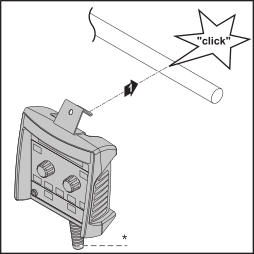

| * | Cable not provided with RC Panel Basic /BT |
Connecting the remote control to system components
1 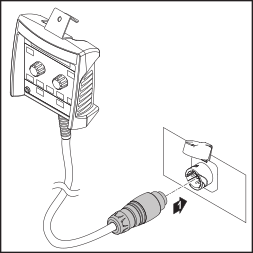 SpeedNet connection socket |
| 1 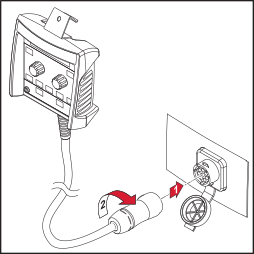 TMC connection socket |
RC Panel Basic /BT: Pairing the remote control to the welding machine via Bluetooth
1Switch on remote control at the indicator light
2Switch on the welding machine and activate the Bluetooth function
The remote control is ready to use when this is detected and displayed by the welding machine.
The remote control is ready to use when this is detected and displayed by the welding machine.
3Confirm Bluetooth settings on the welding machine if necessary
Beware when switching the remote control on/off:
Leave the remote control for at least 3 seconds after switching off, otherwise the switch off will not be detected.
If the device is switched on again too quickly after it has been switched off, the indicator light does not illuminate for 3 seconds.
Fitting optional extras
General
NOTE!
The following steps are described using the RC Panel Basic as an example, however the process is the same on all variants of the RC Panel.
General
NOTE!
The following steps are described using the RC Panel Basic as an example, however the process is the same on all variants of the RC Panel.
Fitting the magnetic holder option
The magnetic holder is only available as an option and is not included in the remote control scope of supply.
CAUTION!
Danger due to falling remote control.
This can result in injury and damage to property.
Always secure the remote control to prevent it from falling down.
1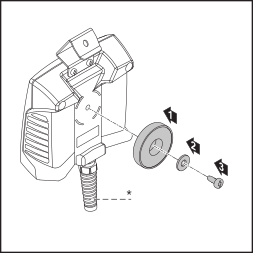
2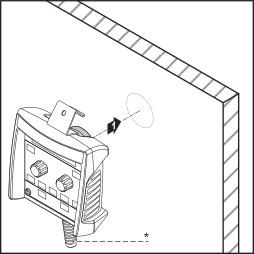
| * | Cable not provided with RC Panel Basic /BT |
RC Panel Basic /BT: changing the battery
Indication of flat batteries
The indicator light does not light up after the device is switched on or does so for less than 3 seconds.
Alongside the Bluetooth user, a battery symbol showing the current state of discharge of the batteries is displayed on the welding machine.
Indication of flat batteries
The indicator light does not light up after the device is switched on or does so for less than 3 seconds.
Alongside the Bluetooth user, a battery symbol showing the current state of discharge of the batteries is displayed on the welding machine.
RC Panel Basic /BT: changing the battery
1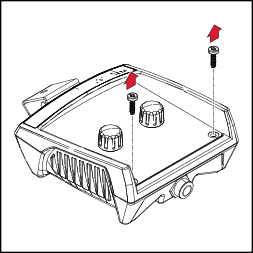
2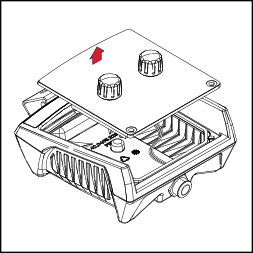
3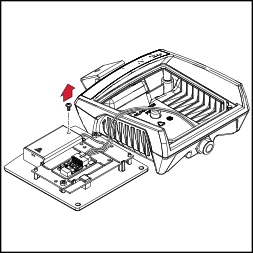
4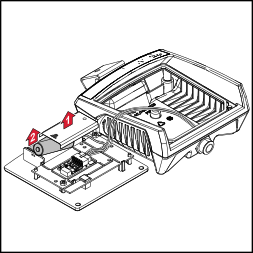
5
6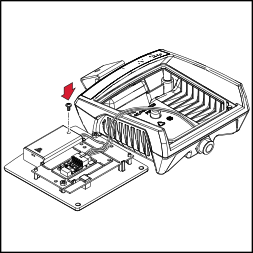
7
8